


User Guide for the Electronic Class Timetable
Faculty of Pharmacy – Skopje
Ss. Cyril and Methodius University in Skopje
Academic Year 2026/2027
CLASSES BEGIN ON 5 OCTOBER 2026
The electronic timetable is accessible from computers, tablets, and mobile phones. This guide explains the two ways to view the timetable and how to add and synchronize your schedule with a calendar application.
1. Today’s Timetable – Matrix View
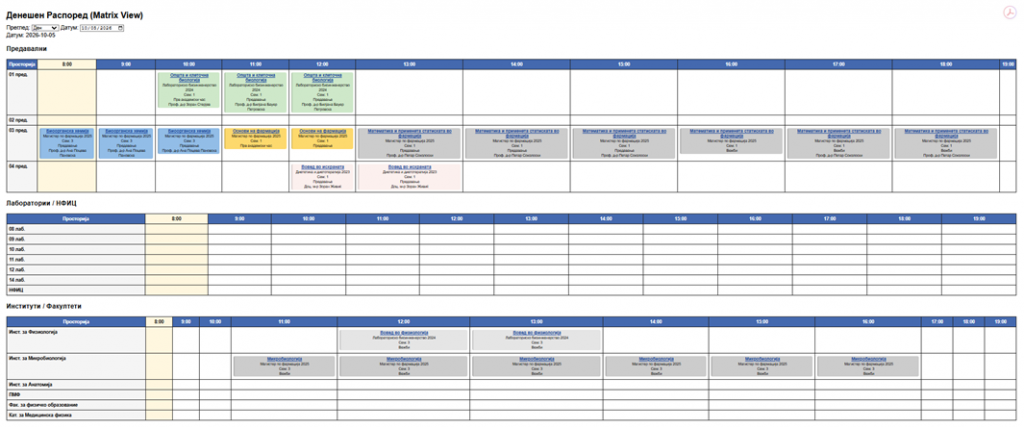
This view is best suited for quickly checking classes on a particular day. Classes are organized by rooms and time slots.
- Select View – for example, Day.
- Select the desired date.
- Browse Lecture Rooms, Laboratories / NFIC, or Institutes / Faculties.
- Find the room and time slot. The scheduled class will appear in the corresponding cell.
Figure 1. Today’s Timetable – Matrix View
1.1. Details of a Specific Class
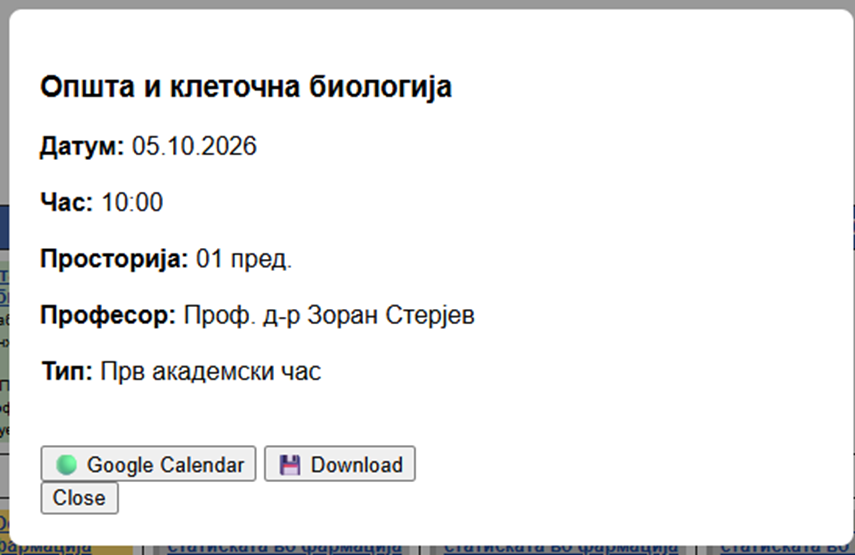
Click a class to open a window displaying the subject, date, time, room, professor, and class type.
The following options are also available: Google Calendar and Download (iOS).
Figure 2. Details of the Selected Class
1.2. Detailed Schedule for a Subject
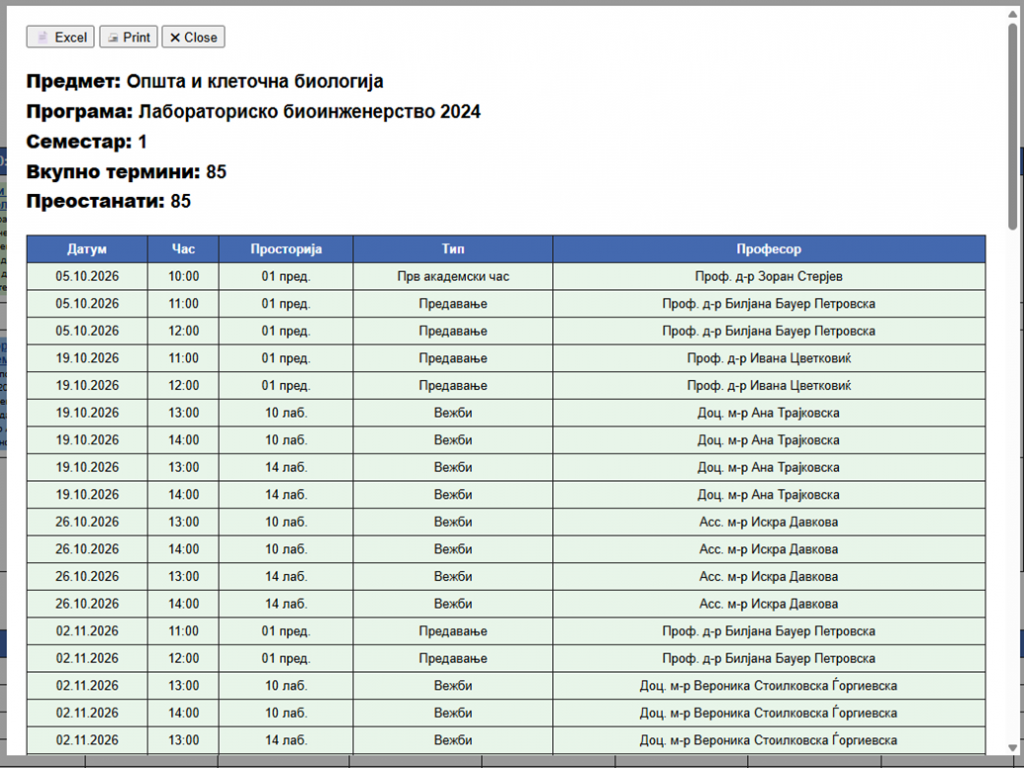
Select a subject to view all its scheduled sessions, including the date, time, room, class type, and professor.
The top section displays the study program, semester, and number of sessions.
Figure 3. Detailed Schedule for a Specific Subject
1.3. Useful Options
- Excel – Download the displayed timetable.
- Print – Print the timetable.
- Google Calendar – Add a specific class session to Google Calendar.
- Download – Download the calendar entry for iOS.
2. Full Timetable
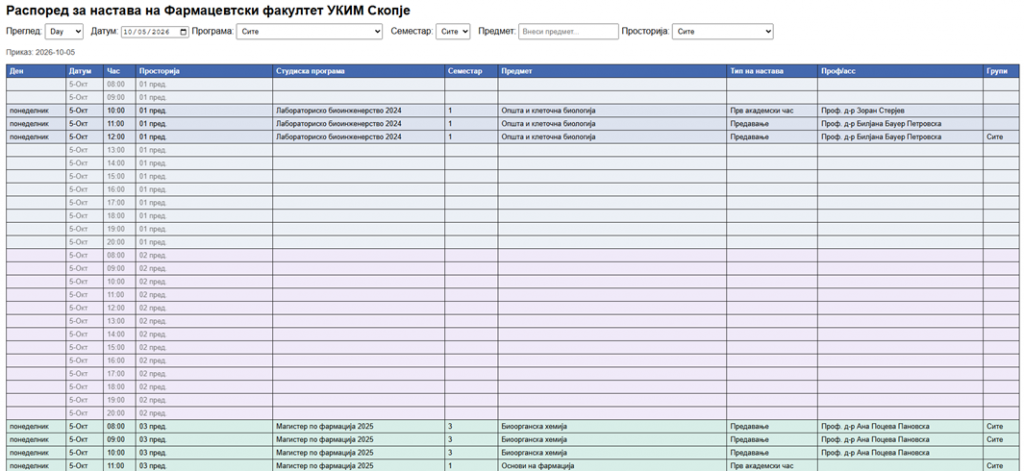
This view is intended for detailed timetable searches and filtering by date, study program, semester, subject, and room.
Figure 4. Full Timetable
2.1. Using the Filters
- View – Select Day, Week, Month, or another available view.
- Date – Select a date.
- Program – Select your study program.
- Semester – Select the semester.
- Subject – Enter the subject name.
- Room – Select a room if necessary.
Tip: First select your study program and semester, then apply additional filters by subject or room.
3. Adding and Synchronizing with a Calendar
You can add your timetable to the calendar application on your mobile phone.
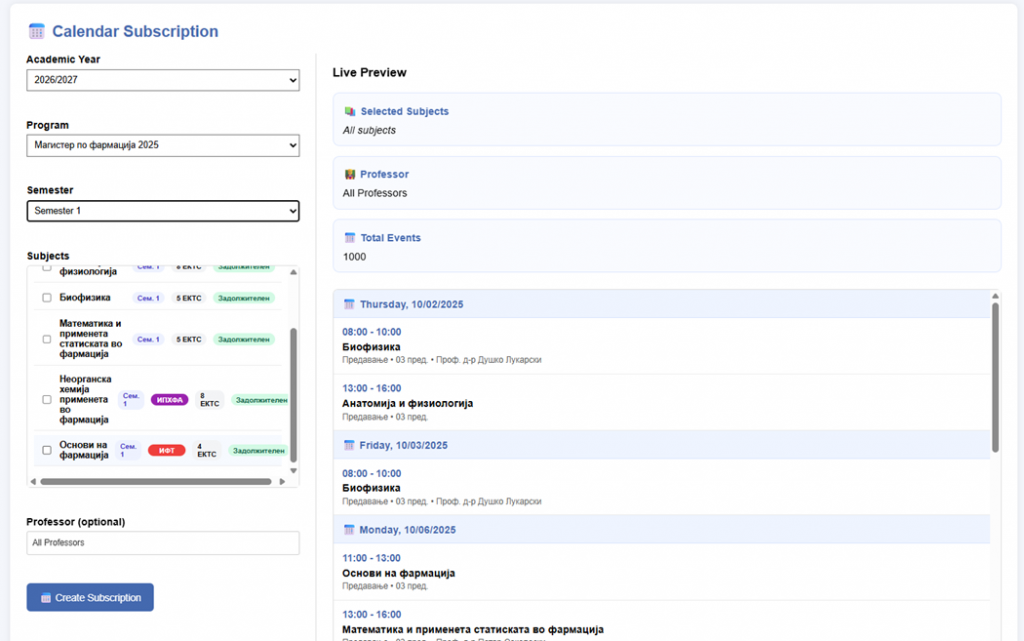
On the dedicated calendar subscription page, select the academic year, study program, semester, and the subjects you want to follow.
Figure 5. Selecting Subjects for Your Personal Calendar
3.1. Creating Your Personal Calendar
- Select Academic Year – 2026/2027.
- Select your study program.
- Select the semester, if all your subjects belong to the same semester.
- Select the subjects you want to follow.
- If necessary, use Search… to find subjects more easily.
- In Live Preview, review the selected subjects and the number of scheduled events.
- Click Create Subscription.
Figure 6. Personal Calendar Successfully Created
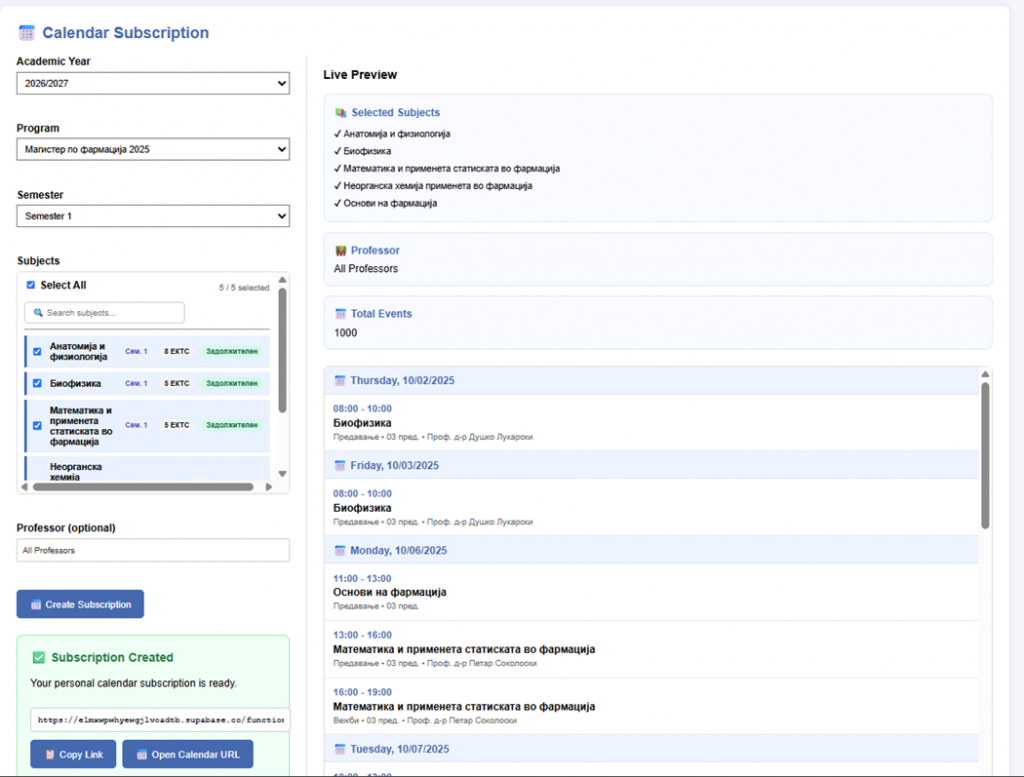
After the subscription is created successfully, the message Subscription Created will appear, along with your personal calendar URL.
- Click Copy Link to copy the URL.
- Click Open Calendar URL to open it.
3.2. Adding Your Personal Timetable to Google Calendar
After creating your personal calendar URL, you can add it to Google Calendar using the From URL option.
Step 1 – Open Google Calendar
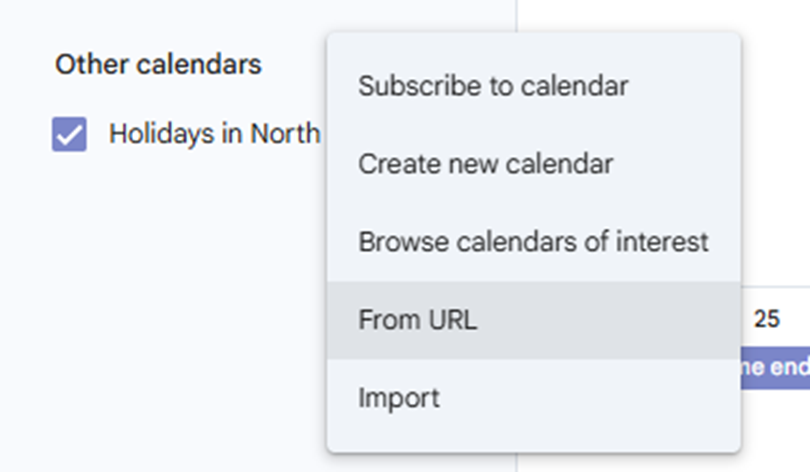
In Google Calendar, find Other calendars in the left-hand panel and click the + icon.
Figure 7. In Google Calendar, Select Other calendars → + → From URL
Step 2 – Enter Your Calendar URL
Select From URL.
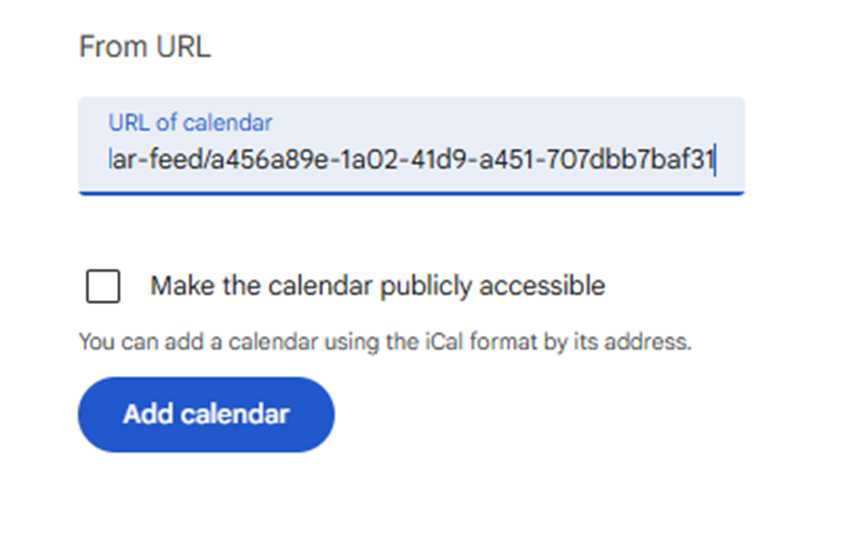
In the URL of calendar field, enter the personal calendar URL you received after clicking Create Subscription.
You do not need to select Make the calendar publicly accessible. Leave this option unchecked unless you intentionally want the calendar to be publicly accessible.
Figure 8. Entering Your Personal Calendar URL
Step 3 – Click “Add calendar”
After entering the URL, click Add calendar.
Google Calendar will add your timetable under Other calendars.
Step 4 – Check Your Timetable
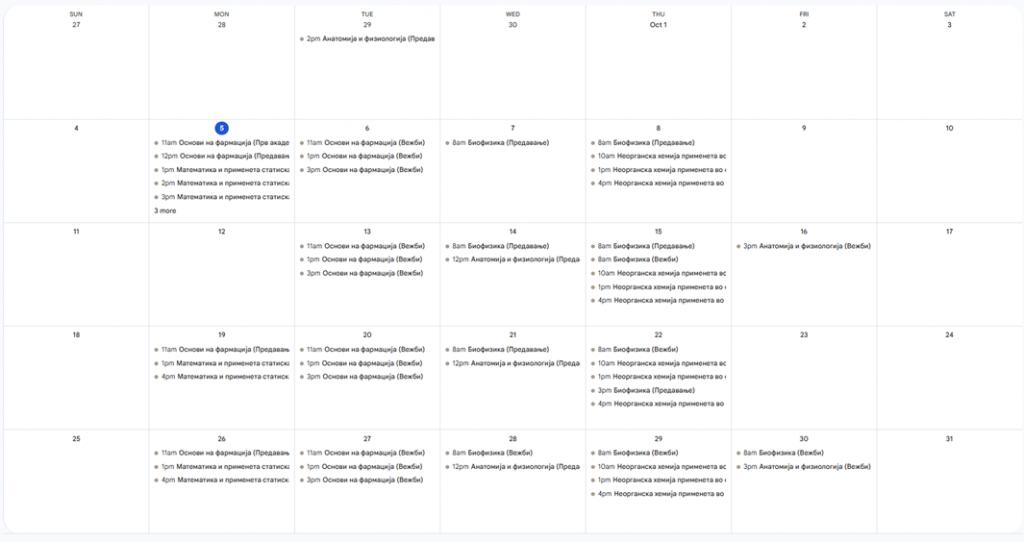
After adding the calendar, your scheduled classes will appear in Google Calendar.
You can view your timetable by day, week, or month alongside your other calendars.
Figure 9. Example of a Timetable Added to Google Calendar
IMPORTANT: Use the personal calendar URL created for your selected subjects. Do not share your personal URL unnecessarily with other people.
3.3. Quick Summary – The Entire Process
- Open the page for creating a personal calendar.
- Select the academic year, study program, and semester.
- Select the subjects you attend.
- Click Create Subscription.
- Copy your personal calendar URL using Copy Link.
- In Google Calendar, select Other calendars → + → From URL.
- Enter the URL and click Add calendar.
- Check that your timetable appears in your calendar.
4. Which View Should I Use?
| If you want to… | Use… |
|---|---|
| Quickly check where and when you have classes | Today’s Timetable – Matrix View |
| Find the timetable for your study program and semester | Full Timetable |
| Find a specific subject | Full Timetable → Subject |
| Check a particular room | Full Timetable → Room |
| Follow your timetable on your mobile phone | Adding and Synchronizing with a Calendar |